When a corporate machine I used was refreshed from an HP to a Dell, I noted I was no longer able to view the internal storage device booting to Colin Ramsden’s WinFE build during testing.
Recognizing that it was probably a driver issue, I noted the observation and went about my work. After some time, I finally got around to it. Here are my notes.
Background
In Dell’s BIOS setup are SATA/NVMe operation modes: Disabled, AHCI/NVMe and RAID ON. Mentioned here, and on the Digital Forensics Discord Channel, RAID ON is the default operation mode.
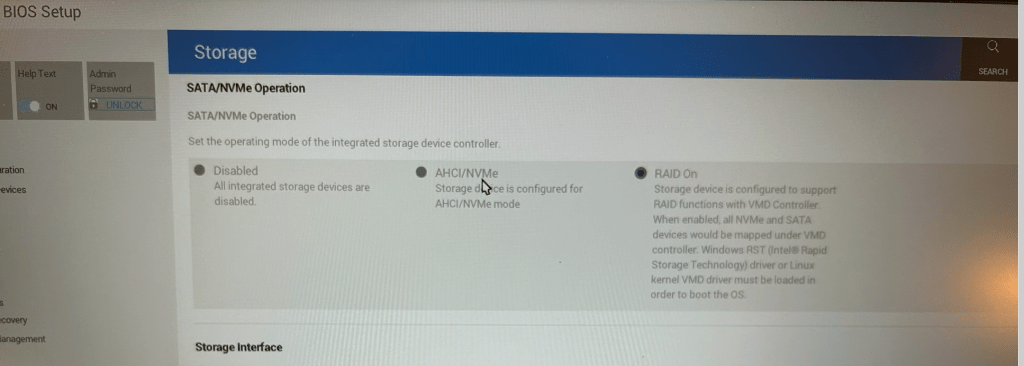
While there is reportedly no performance difference between the RAID ON and AHCI/NVMe, WinPE (and WinFE) fail to recognize the primary storage device when the SATA/NVMe operation mode is set to RAID ON. This observation is well reported; here are a handful of links:
DELL – RAID ON – SSD Disk don’t appear : r/MDT
RAID configured SSDs not recognized in SCCM environment (PXE Boot) : r/SCCM
Fix Hard Drive and SSD Issues | Dell US
Many have reported switching the operation mode to AHCI/NVMe will work just fine. However, I noted this warning:
Changing the computer storage SATA/NVMe Operation settings to the opposite option (from AHCI/NVMe to RAID ON or from RAID ON to AHCI/NVMe) in the BIOS, could cause windows to present an INACCESSIBLE BOOT DEVICE (0X7B) error while booting the computer, causing an inability to boot into the operating system.
Acknowledging the risk of temporarily bricking a machine and a test Dell system not immediately available (I’m certainly not going to try this on a daily driver), I opted to rebuild WinFE with the drivers installed.
Identifying, Preparing, and Staging the Drivers
For the WinFE build to work, the correct drivers must be identified, prepared for pre-installation, then staged before editing and executing in the WinFE build script. Additionally, at least ADK 2004 (republished May 2025) must be used.
A couple of comments from the Digital Forensic Discord noting the “rapid storage technology” driver saved me a bunch of time identifying the appropriate drivers.
I picked the installer appropriate for the generation of the Intel processor on my corporate machine; in my case it is Intel® Rapid Storage Technology (Intel® RST) Driver version 20.2.6.1025.3.

Downloading SetupRST.exe will provide an executable to install it on a live machine; however, the drivers must be extracted from the file to load it in the new WinFE build. While the README text file does not explain how to extract these drivers, the command within a README file from a previous release works just fine:
6.3 Pre-Installation of INTEL(R) RST driver using the "Load Driver" Method.a. Extract driver files from SetupRST.exe: - Open terminal in the directory with SetupRST.exe by right-clicking the directory and selecting "Open in Terminal" or "Open PowerShell here" - Enter the following command: ./SetupRST.exe -extractdrivers SetupRST_extracted
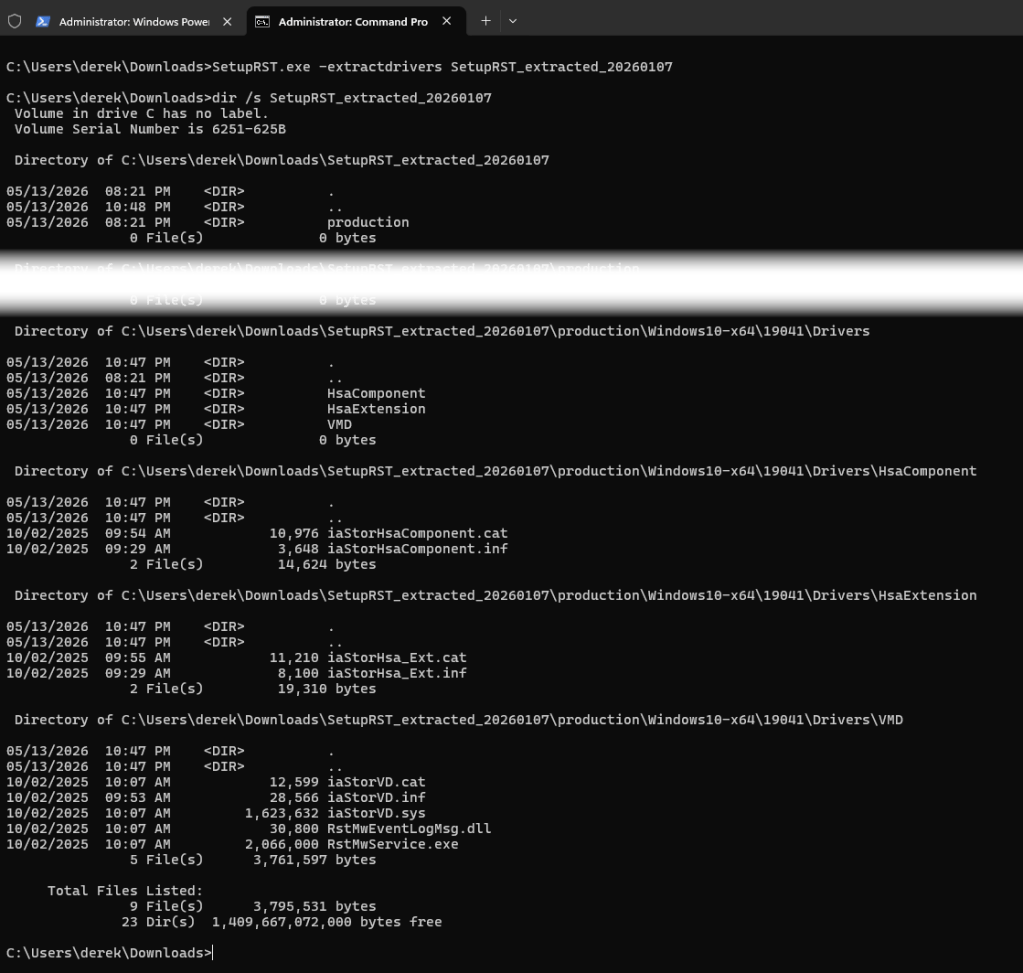
After successfully extracting the drivers, download the most recent version of Colin Ramsden’s WinFE build here. The release available as of this post is 2025-05-16.
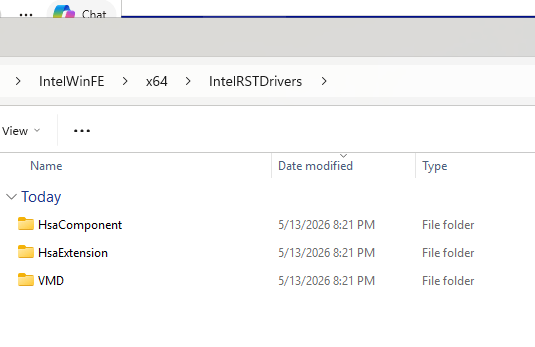
As I’m not expecting to encounter Dell x86 machines anytime soon, I created a new directory and placed the extracted contents in IntelWinFE\IntelWinFE\x64\IntelRSTDrivers.
Only three additional lines MakeWinFEx64-x86.bat are required. I elected to add them after the dism.exe Package Servicing /Add-Package command
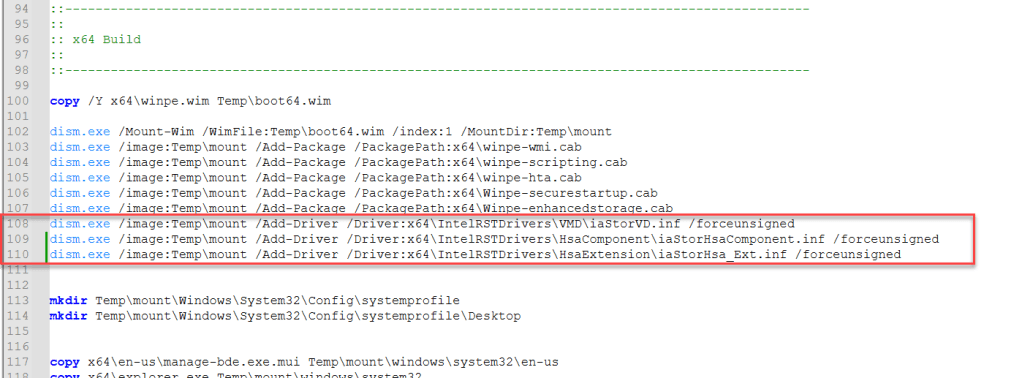
These drivers aren’t signed, so the /forceunsigned switch is necessary.
dism.exe /image:Temp\mount /Add-Driver /Driver:x64\IntelRSTDrivers\VMD\iaStorVD.inf /forceunsigneddism.exe /image:Temp\mount /Add-Driver /Driver:x64\IntelRSTDrivers\HsaComponent\iaStorHsaComponent.inf /forceunsigneddism.exe /image:Temp\mount /Add-Driver /Driver:x64\IntelRSTDrivers\HsaExtension\iaStorHsa_Ext.inf /forceunsigned
After updating the script, the WinFE build may proceed normally.
Closing
Interested in learning more about WinFE? Consider checking out a previous post here, Brett Shaver’s WinFE blog here, or buy Shaver’s book here.
Feature image generated with ChatGPT with a Plus subscription.


Leave a Reply