![This iPhone is supervised and managed by [organization name]. Learn more about device supervision...](https://mreerie.com/wp-content/uploads/2023/11/iphonex_supevised.png?w=1024)
In my experience, extracting data from supervised iOS devices in a corporate environment has presented unique challenges to collect data.
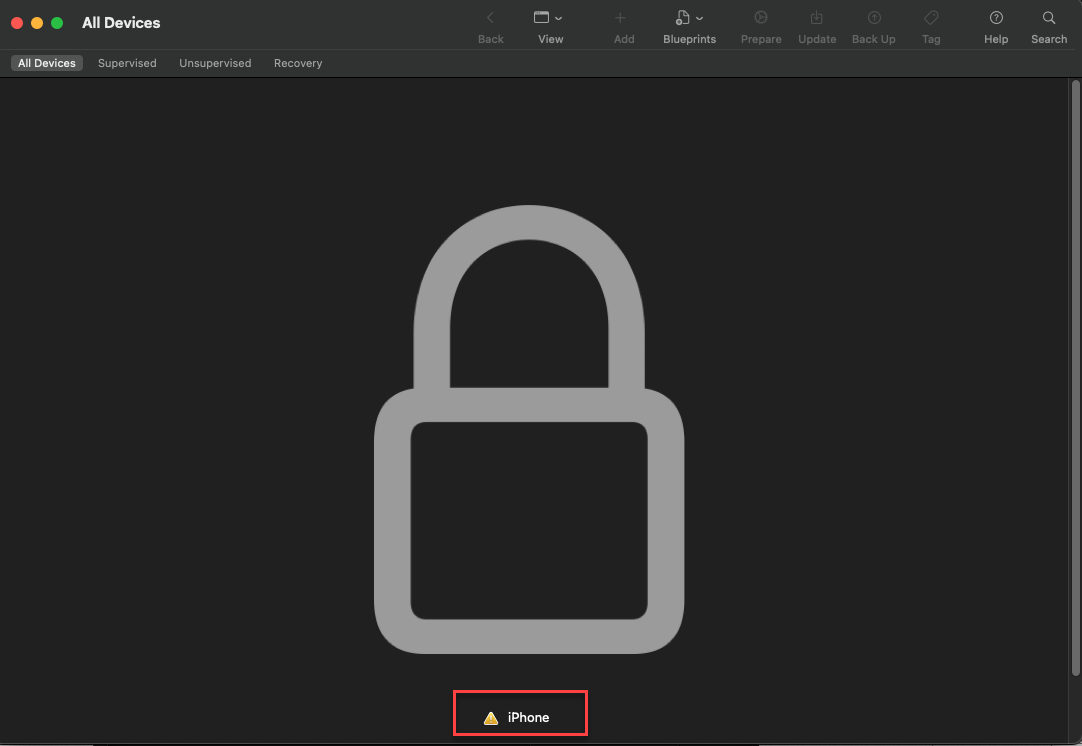
Supervision is intended to provide organizations control over the iOS devices it owns. This may include ensuring appropriate use consistent with a corporate policy. For example, not allowing iCloud backups, disabling AirDrop, and not allowing iCloud Photos are a few restrictions that mitigate potential means of data leaks or data exfiltration. Through supervision, devices may also be pair-locked to restrict what machines an iOS device may pair with. However, establishing trust with a machine is necessary for many digital forensic tools to extract data.
I was first introduced to pair-locking when a co-worker, Drew Johnson, was searching for a process to extract an iTunes back up from corporate issued iOS devices. Our initial attempts to retrieve iTunes backups failed as the Windows operating system (OS) we’re initially using wouldn’t initiate a prompt to pair. Johnson determined extraction was restricted because of a mobile device management (MDM) setting via Apple device supervision for corporate-owned iOS devices. If the setting is set to “false”, a supervised iPhone or iPad will only pair with a supervision host.


To resolve this issue, the team collaborated with the mobile device administers to set up a valid supervision identity certificate. With the supervision identity certificate, it can be imported and exported to a machine using a program capable of managing supervision identities, like Apple Configurator 2 (AC2). This enabled our ability to connect a supervised iPhone or iPad on a macOS machine to collect an encrypted iTunes backup.
Pairing-Locking for Privacy and Security
Pair-locking may benefit end-users interested in limiting or delaying access to their device by unauthorized parties. Jonathan Zdziarski writes about the technique here and Arkadiy Tetelman revisits Zdziarski’s original post here.
Organizations may adopt pair-locking for corporate-issued iOS devices to prevent data loss, but this does not appear common. The handful of peers in other organizations I reached out to do not appear to encounter them. Until recently, digital forensic software vendors I contacted that sell products to corporations were not able to provide insight on their tools’ capability to extract data from pair-locked iOS devices with an appropriate supervision identity.
For digital forensic examiners that work in, or provide digital forensic services to, corporate organizations, knowing when pair-lock issued devices are present, understanding what supervision identities are, and how to use the supervision identity is critical to maximize extraction opportunities. In the FOR585 OnDemand course, Heather Mahalik cautions how an MDM may directly impact extractions. For eligible devices, removing an MDM profile may provide options. Retiring a device from the MDM administrator console is also option. Either approach must be evaluated based on what applications are managed by the MDM as that may impact data involving those applications. Otherwise, without a valid supervision identity certificate, even with a device’s passcode, pair-locked devices will impede extractions. This is especially true if technology typically restricted to law enforcement that reportedly by-passes the pair-lock technique is not accessible.

More than Just Backups
While older pair-locked iOS devices may be exploited with checkm8 without a supervision identity certificate, newer devices are not. As a digital forensic analyst in a corporate environment, I wanted to explore a method to extract more data from pair-locked iOS devices. From Gianluca Tiepolo’s book, iOS Forensics for Investigators, I learned about agent-based full file system extractions. I’m aware of the following vendors that publicly advertises agent based FFS extractions:
Oxygen Forensics and Belkasoft’s solutions require a Windows operating system. At the onset of my search, my awareness of a solution capable of managing Apple’s supervision identities was limited to Apple Configurator 2; therefore, I erroneously believed the extraction tool must be software that runs on macOS. Despite my error, I learned Elcomsoft’s iOS Forensic Toolkit is not only able to run on Windows, but macOS as well.
Based on a confirmed ability to establish a connection to a macOS machine using AC2 with the appropriate supervisory identity, I believed an FFS extraction from an iOS device using an agent may be obtained. To test this, I needed access to the software.
Preparing for an Agent Extraction with Elcomsoft iOS Forensic Toolkit
Elcomsoft offers a 15-day trial for their iOS Forensic Toolkit (EIFT). After contacting Vladimir Katalov, the cost of the dongle/delivery and a few days, I had a dongle delivered to my door.
I used an iPhone X as a test device and is an appropriate candidate for an agent extraction. From Katalov’s blog post in 2022, user data on devices with the A11 Bionic chip are not accessible with checkm8 if a screen lock passcode was ever used since iOS 16. As of 2023-11-18, EIFT supports agent extractions for iOS versions up to 16.5.
To sideload the agent, I created an Apple Developer Account. As it is a new account, the device needs internet access to Apple’s servers for sideloaded apps to work. Extractions involving evidence requires a tested and validated firewall to mitigate risks from the device being remotely locked or wiped. I’m not concerned about any sync or remote lock/wipe commands for this test; therefore, I did not set up a firewall. Katalov’s blog post in 2023 on Installing the Extraction Agent has more detail on the process, including options on setting up the firewall.
I created an organization with a new supervision identity and manually enabled it on the iPhone X (MQCN2LL/A, iOS v16.0.2) in AC2 (v2.16). Corporate organizations will likely automate supervision through Automated Device Enrollment. Aside from unchecking, “Allow devices to pair with other computers”, no other restriction was enabled for the purpose of this test. Supervising a device will erase all content.

Creating a new Supervision Identity:
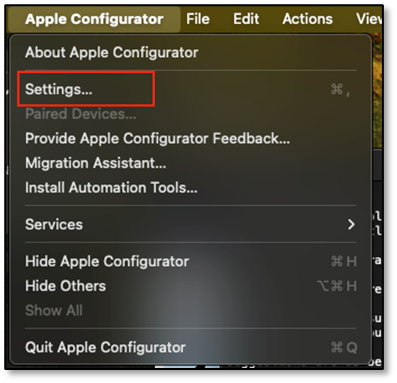
Go to Apple Configurator | Settings…
Click on Organizations
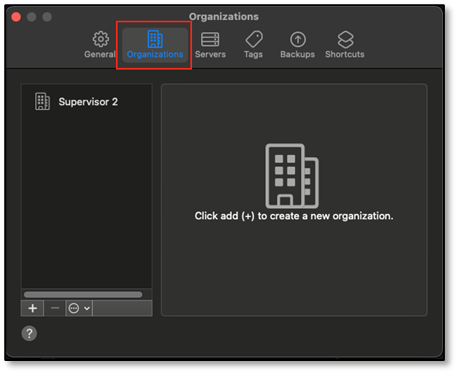
Click on the (+) button.

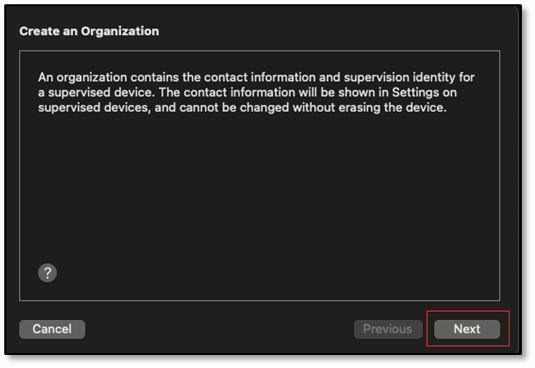
Note the information provided on about the contact information that will be available on the supervised device; click Next.
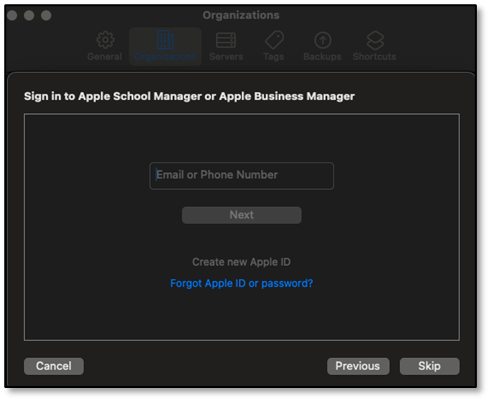
Enter the information associated with Apple School Manager or Apple Business Manager. If neither applies, this may be skipped.
Complete the fields, as appropriate, then click Next.

Select “Generate a new supervision identity”, then click Done.
Note: Administrator credentials are needed to make changes to the Certificate Trust Settings.

After the device was set up, I connected the iPhone X to a Windows OS machine. Other than iTunes, the machine does not have any other iOS device support software installed. As expected, the iPhone did not prompt, “Trust This Computer?”, and would not pair.
EIFT (v8.41) was installed on a Mac mini (Sonoma v14.1) with the M2 Chip, 8‑Core CPU, 10‑Core GPU, and 24GB of memory. Based on Elcomsoft’s recommendation to use a USB hub for checkm8 extractions, the iPhone X was connected to the Mac mini with a LDLrui USB C hub and an Anker USB-A to lightning cable.
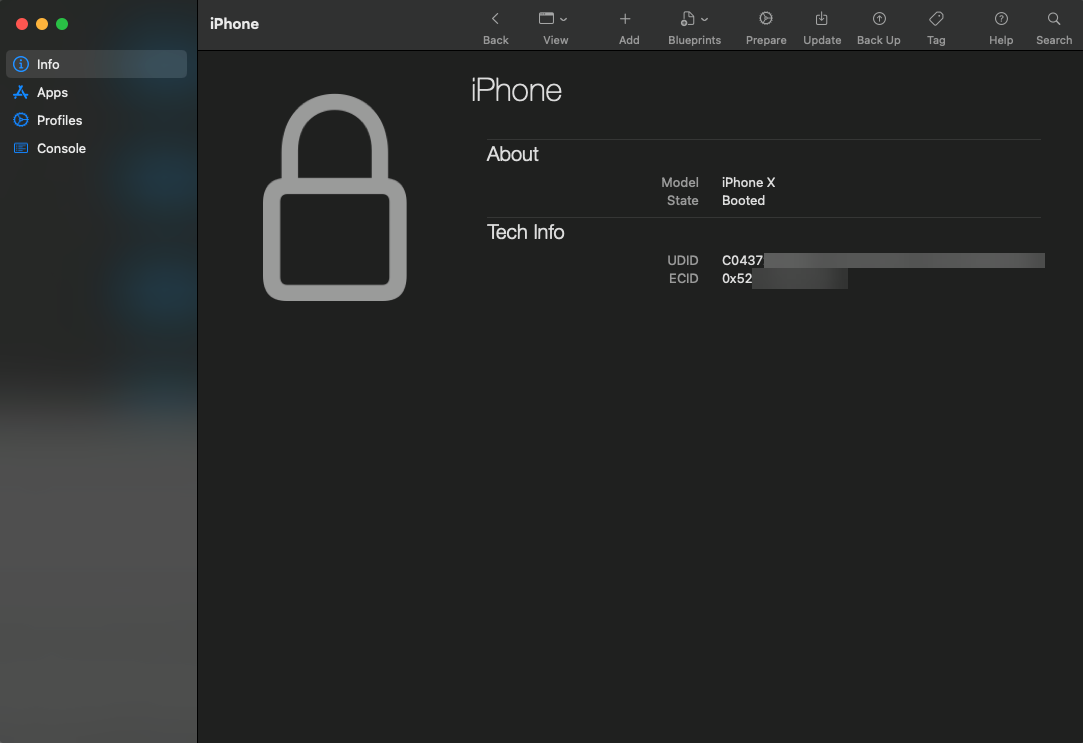
With the iPhone X connected to the Mac mini and AC2 running, it is recognized as “supervised”. Data generation on the iPhone X was minimal. A single app, Signal Messenger (v6.47), was installed, configured, and a message was sent. As the test device was running iOS v16.0.2, Developer Mode was enabled to sideload the agent.

P12 and .Organization Files
Crucial to accessing a pair-locked device are the P12 or .organization files. The mobile device administrator responsible for managing the devices would be a contact of interest for these files.
The supervision identity certificate file (PKCS #12, .p12) may be exported to use on other machines capable of importing the file to pair with its respective supervised iOS devices.
To export an .organization file using AC2:
Go to Apple Configurator | Settings…
Click on Organizations
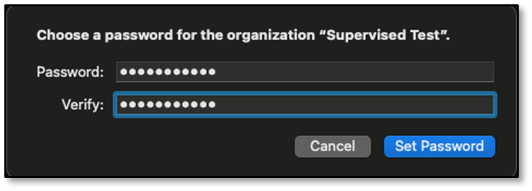
Enter an appropriate password and verify it by entering the same password, then click Set Password.
Note: Consider all necessary controls or procedures to protect the .P12 file, the .organization file, or the machine it is imported to.
Save the .organization file at an appropriate location, then click Save.

The .organization file is successfully exported.

To import an .organization file using AC2:
Go to Apple Configurator | Settings…
Click on Organizations
Click on the (…) button, then select Import Organization…
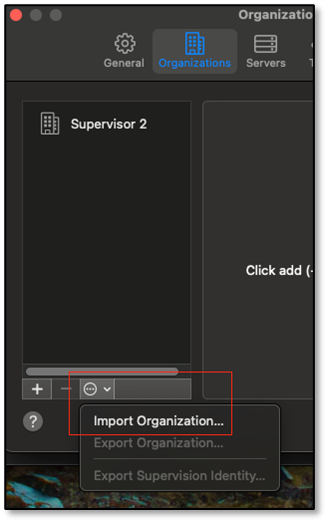
Click on the (…) button, then select Import Organization…
Select the .organization file, then click Import.

Enter the password associated with the .organization file, then click Submit.
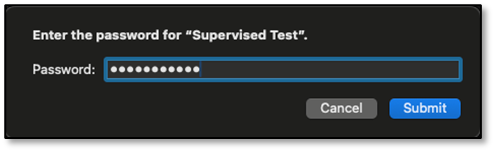
The supervision identity is successfully imported.

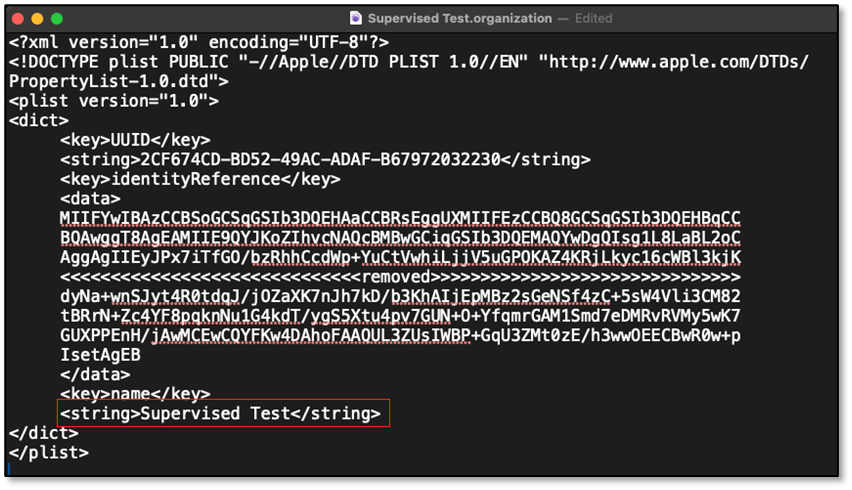
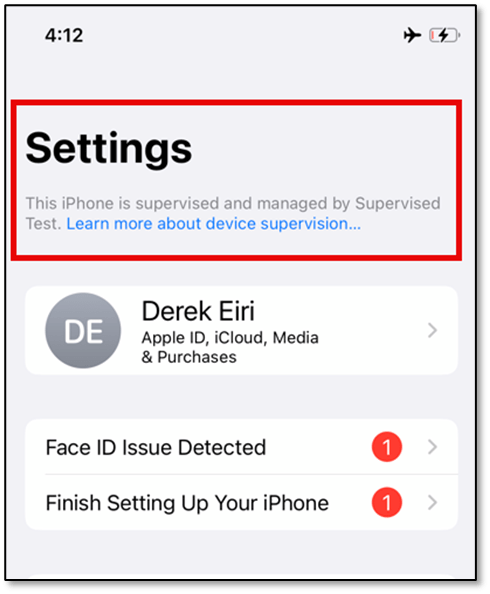
Exporting the .organization file contains metadata about the supervising organization, along with the supervision identity, may be helpful if managing multiple P12 files. The name in the .organization file may be matched to the organization name on the device.
If you need to remove the supervision identity for a macOS machine, you’ll need remove it from AC2, remove the supervision identify certificate from the keychain, and delete the pairing record from /private/var/db/lockdown. With macOS v14.1, you’ll need to disable SIP and change permissions for the directory to access or make any changes.
Using EIFT to Extract an FFS with an Agent
My attempt to extract an FFS with EIFT using an agent was successful. The following is an overview of the process, as I experienced it.
With the iPhone connected to the macOS machine, AC2 running, and the appropriate supervision identity, I used the device’s passcode to allow AC2 to connect to the device.
Initiating the info command, EIFT will provide similar information provided by AC2 and will indicate if the device is paired. If connecting a supervised iOS device without the appropriate supervision identity loaded, EIFT will note it is not paired. An attempt to install an agent will display the error, “Handshake with lockdownd failed”.

After verifying Developer Mode was enabled to sideload the agent, the following general steps, as described by Elcomsoft, were followed: install the agent, perform the acquisition, then uninstall agent.
With a matching supervision identity existing in AC2, I did not have to explicitly pair the device to the Mac mini with EIFT and installed the agent using the Apple Developer Account.

After the agent installed, commands to dump the keychain and file system as a TAR file were entered while the sideloaded app was running on the device.


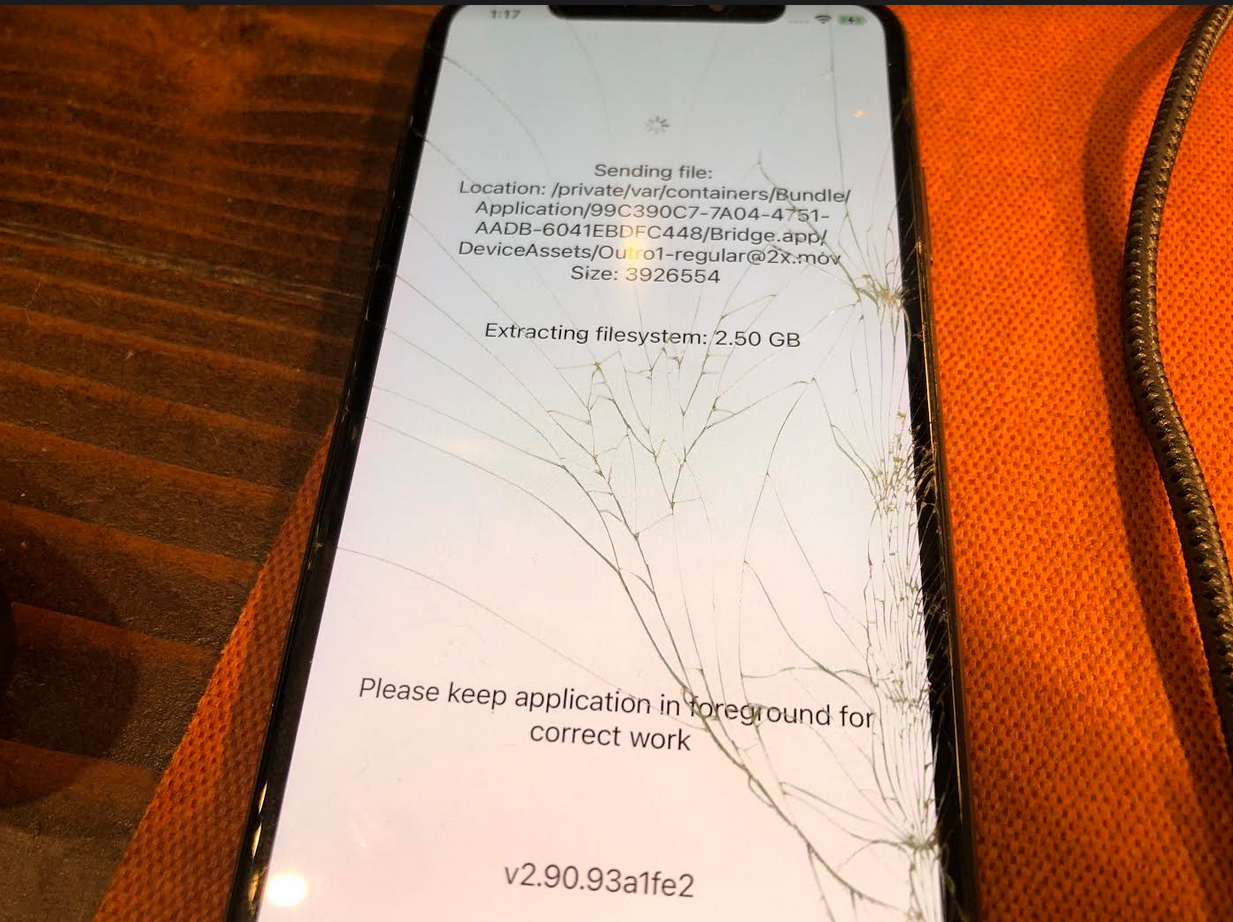
After the extraction, the agent was uninstalled.

Processing the FFS Extraction
Traversing the TAR file, I confirmed the collection of known pictures and known artifacts only available with an FFS was successful. To process the TAR file, several methods may be used. The following are a handful processing methods I explored after a successful extraction using EIFT and copying the files to a Windows OS.
iLEAPP
Using ileappGUI (v1.18.7), Alexis Brignoni, and all the developers who contribute to the project, make for processing a TAR a simple task.


X-Ways Forensics with DB Browser for SQLite
I referenced Michael Yasumoto‘s contribution in Brett Shavers’ X-Ways Forensics Practitioner’s Guide 2E to process the TAR file in XWF 20.8 SR-2. Using DB Browser for SQLite (v3.12.2), I used the SQLite query for “app/intents” referenced in Sarah Edwards’ blog post on KnowledgeC.

Belkasoft X
I also processed the TAR file using a trial license for Belkasoft X (v2.1.13620). After initiating the task to process the TAR file, I retrieved the key from Elcomsoft’s keychain dump and entered the value in base64. Belkasoft has a thorough description of the process here.



A similar process is achievable with Magnet Forensics AXIOM, except you must decode the base64 to hex. Of note, Katalov reported he is collaborating with Magnet Forensics to add support for Elcomsoft’s keychain format. Additionally, Elcomsoft may develop a tool/script to convert it.
Extraction Considerations Using Windows OS
Almost immediately after my initial testing with EIFT, I became aware of iMazing, which is like AC2 for Windows and opens up new opportunities! Since v.2.11.7, the Windows trial version of iMazing has the feature to import and export supervision identities. Based on testing, I can import the supervision identity, or .organization file, then connect the corresponding supervised iOS device to a Windows machine.
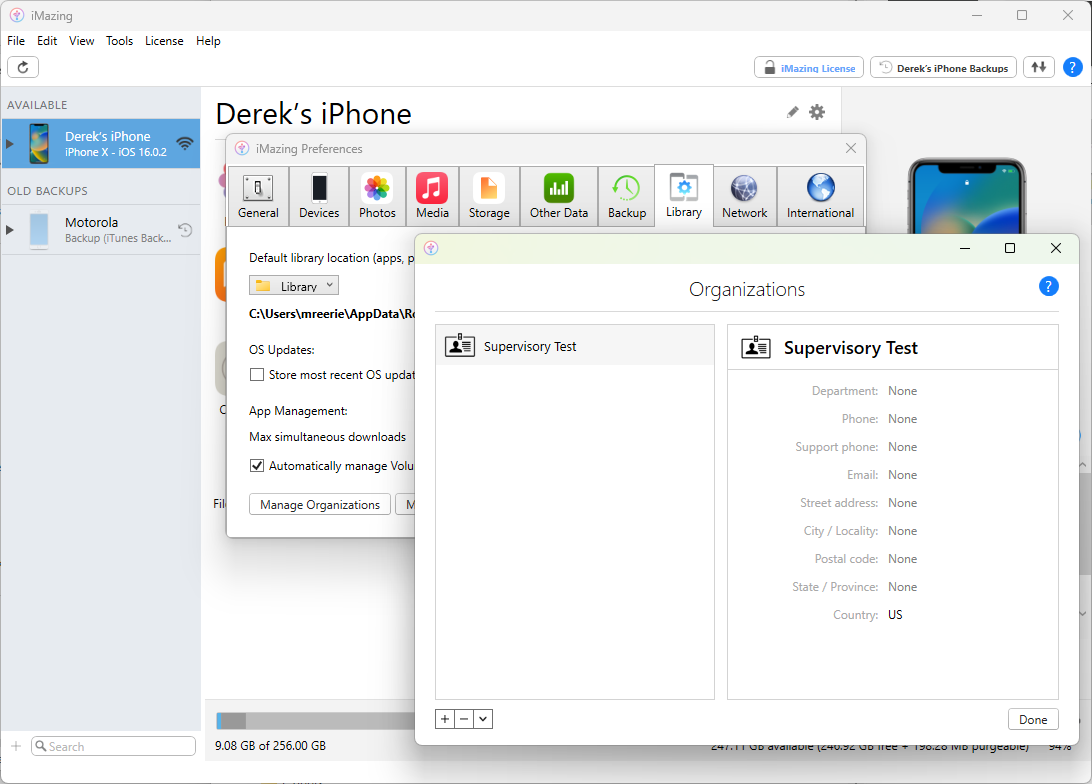
So far, I’ve been able to do the following using the Windows version of iMazing (v2.17.11) with a pair-locked iOS device:
- Create an encrypted iTunes backup using iMazing.
- Use Magnet Forensics ACQUIRE to perform an unencrypted iTunes backup, or a Quick Extraction.
- Use Belkasoft X to acquire and process an encrypted iTunes backup.
- Use Magnet AXIOM to acquire and process an encrypted iTunes backup.
- Use Hexordia’s Evanole Community Edition to monitor and parse logs.
- Use EIFT (v8.12) to acquire a keychain dump and an FFS extraction with an agent.




It’s great to have options.
Summary
I sought a technique to perform full file system extractions of pair-locked iOS devices not exploitable with checkm8 using the appropriate supervision identity. I was initially focused on performing the extraction on a macOS machine based on the belief supervision identities can only be managed using Apple Configurator 2.
Using the Elcomsoft iOS Forensic Toolkit extraction agent, I successfully acquired an FFS of an iPhone X (iOS v.16.0.2) and processed the TAR file using various tools. I was also able to leverage Elcomsoft’s keychain dump in Belkasoft X and Magnet Forensics AXIOM.
Learning about iMazing introduced new opportunities for extractions using tools available on the Windows OS. This is especially exciting after spending some time believing a solution was limited to a macOS machine. After testing a handful of Windows-based tools, I’m eager to learn more about the tools I initially ruled out. Further, it is my understanding specialized consent-based full file system extraction tools may also accept the P12 file.
While it appears uncommon, pair-locking iOS devices may be an important privacy and security control to an organization’s layered data protection strategy.
Understanding how pair-locking impacts data extraction prepares digital forensic examiners to advise stakeholders if pair-locked iOS devices are present in the environment. While it appears uncommon, pair-locking iOS devices may be an important privacy and security control to an organization’s layered data protection strategy. Should an organization start supervising their corporate issued iOS devices, awareness of supervision identities will also prepare the examiner to collaborate with the mobile device administrator to ensure their capability to collect and examine the data.
Resources
While mostly referenced in-line in this post, listed are links to resources I found helpful. Do you work for, or with, an organization that supervises their iOS devices? Let me know in the comments!
https://arkadiyt.com/2019/10/07/pair-locking-your-iphone-with-configurator-2/
https://belkasoft.com/signal-decryption-with-belkasoft-x
https://blog.elcomsoft.com/2020/09/the-issue-of-trust-untrusting-connected-devices-from-your-iphone/
https://blog.elcomsoft.com/2021/12/more-on-checkm8-and-usb-hubs-upcoming-iphone-7-support/
https://blog.elcomsoft.com/2023/07/ios-device-acquisition-installing-the-extraction-agent/
https://datatracker.ietf.org/doc/html/rfc7292
https://developer.apple.com/documentation/devicemanagement/restrictions
https://downloads.imazing.com/windows/iMazing/2.11.7/release-notes.html
https://github.com/abrignoni/iLEAPP
https://www.groundctl.com/kb/3284
https://imazing.com/guides/configurator-blueprints
https://news.ycombinator.com/item?id=21208485
https://media.blackhat.com/bh-us-11/Schuetz/BH_US_11_Schuetz_InsideAppleMDM_WP.pdf
https://reincubate.com/support/how-to/pair-lock-supervise-iphone/
https://support.apple.com/apple-configurator
https://support.apple.com/en-gb/HT202778
https://support.apple.com/guide/apple-configurator-mac/supervise-devices-apd9e4f64088/mac
https://support.apple.com/guide/deployment/about-device-supervision-dep1d89f0bff/1/web/1.0
https://support.apple.com/guide/deployment/restrictions-for-iphone-and-ipad-dep0f7dd3d8/web
https://support.apple.com/guide/security/glossary-sec93292bfa6/1/web/1
https://www.amazon.com/iOS-Forensics-Investigators-forensics-extracting/dp/1803234083
https://www.amazon.com/Mobile-Forensic-Investigations-Collection-Presentation/dp/1260135098/
https://www.amazon.com/X-Ways-Forensics-Practitioners-Guide-Shavers/dp/0578399601
https://www.forensicfocus.com/forums/general/iphone-5c-trust-this-computer-supervised-computer/
https://www.hexordia.com/blog-1-1/evanole-community-edition-release
https://www.linkedin.com/in/drewmichaeljohnson/
https://www.sans.org/cyber-security-courses/advanced-smartphone-mobile-device-forensics/
https://www.zdziarski.com/blog/?p=2589
| Forensic Question: | What techniques are available for private-sector digital forensic examiners to perform a full file system acquisition from a pair-locked iOS device not exploitable with checkm8 using a matching supervision identity file? |
| OS Versions: | iPhone X, iOS 16.0.2 |
| Tools: | macOS, Sonoma v14.1 Apple Configurator 2 v2.16 Elcomsoft iOS Forensic Toolkit v8.41 Windows 11 Pro, OS Build 22621.2428 iMazing (trial) v2.17.11 Elcomsoft iOS Forensic Toolkit v8.12 |
Edits
2023-11-20: Included considerations on removing an MDM profile from eligible devices or retiring a device from the MDM system under “Pairing-Locking for Privacy and Security”.
2025-08-26: Added feedback from a review process to include clarifications.


 mr. eerie
Leave a reply to Digital Forensics Round-Up, December 07 2023 – Forensic Focus Cancel reply