
When I took a brief study break preparing for the GIME exam following the FOR518 class, I started exploring a Python project named Universal Forensic Apple Device Extractor (UFADE). UFADE extracts files from iOS devices, creates iTunes-style backups and “advanced logical backups” and features a user-friendly GUI.
UFADE has evolved quite a bit since I first learned about Christian Peter’s work when it was discussed on episode 15, and most recently on episode 20, of the Digital Forensics Now podcast. Peter’s recent releases are especially intriguing to me as it now includes the option to pair with supervised devices!
Other individuals concur the difference UFADE makes; UFADE has been nominated for the SANS Difference Makers Awards. Please consider voting for UFADE for the category, Innovation of the Year (Open-Source or Product Tool).
In this post, I note my observations and thoughts about UFADE as of 2024-09-30.
Installing UFADE
I installed UFADE on a machine running Windows 11 (OS Build 22631.4169) and an M2 macOS (14.6.1). As appropriately noted in the README file, to use the developer features for iOS version before iOS 17, i.e., screenshots, you need to the submodule with images.
If a precompiled version is your preference, those exist for Windows and macOS. With the macOS executable, I was able to run it on an M2 machine after installing Rosetta.
UFADE GUI Interface
Below are descriptions of the GUI, including a handful of UFADE’s features I explored. All screenshots below are of UFADE on a Windows machine.
Pairing an iOS Device
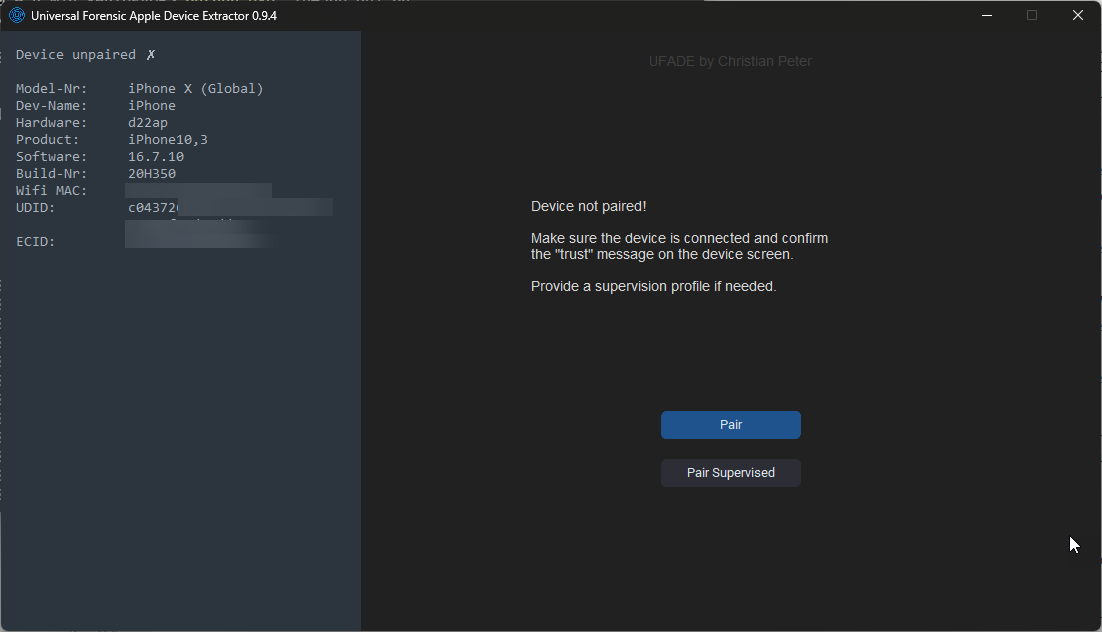
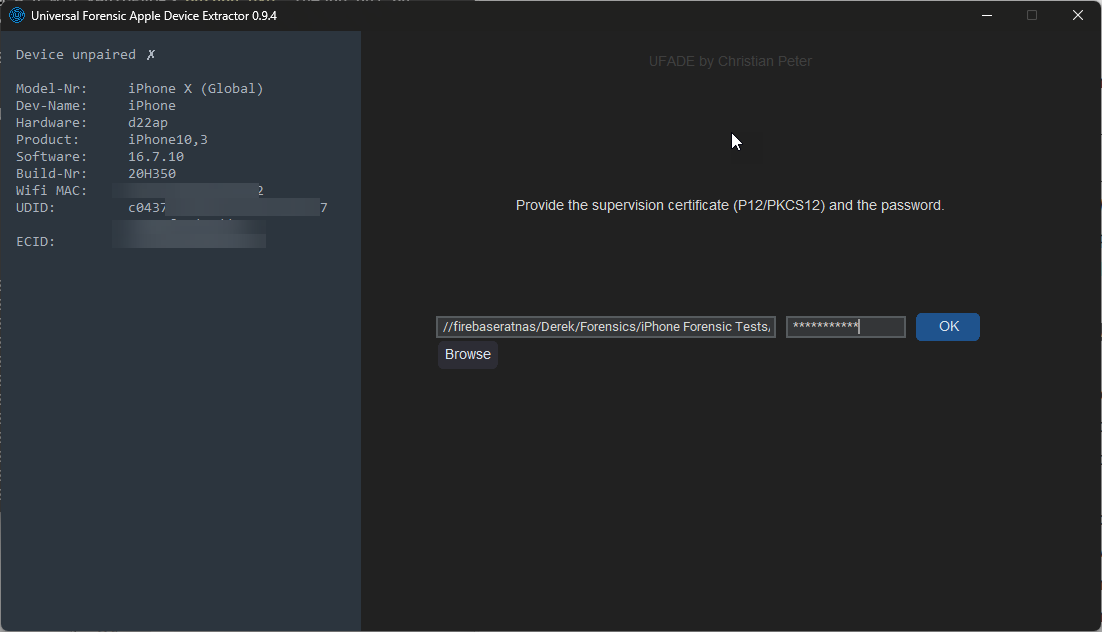
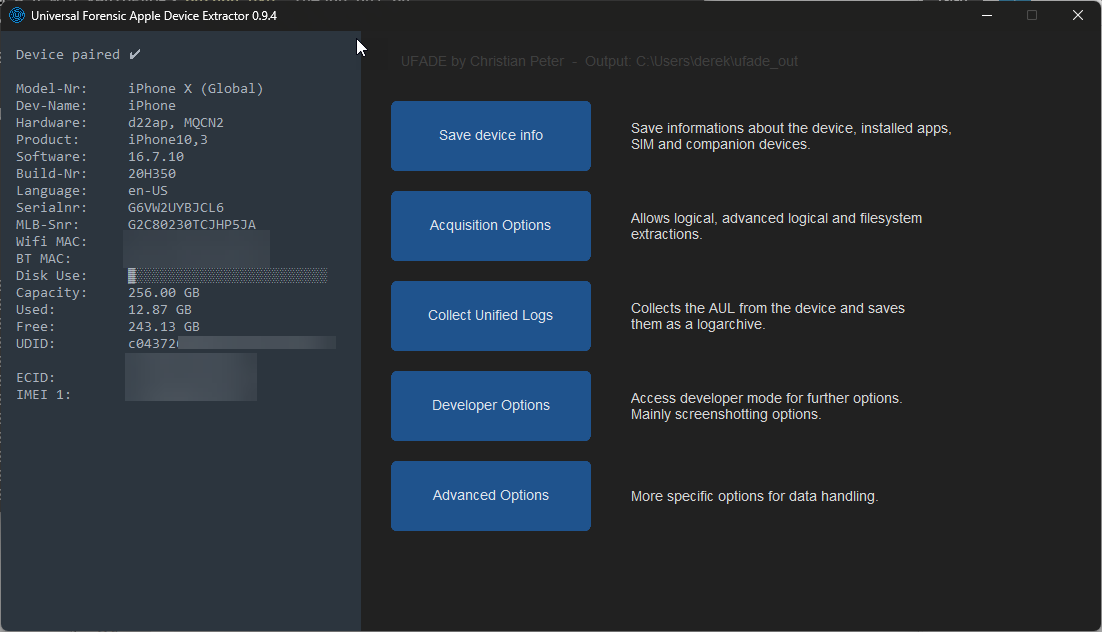
Using a pair-locked iPhone X as an example, UFADE greets you with the option to load a supervision certificate. If you have one, browse and select the appropriate file and enter the password. After selecting an appropriate output directory, you are presented with several options to choose from.
Save device info
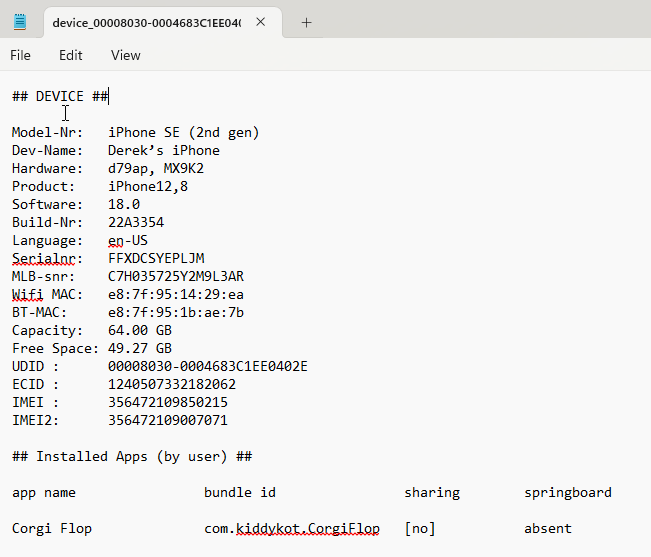
This option will save a text file with the UUID as the filename. It includes device information, including apps installed by the user and its visibility on the home screen.
Acquisition Options
A few backup options are available, including an option to create a full file system for jailbroken iOS devices.
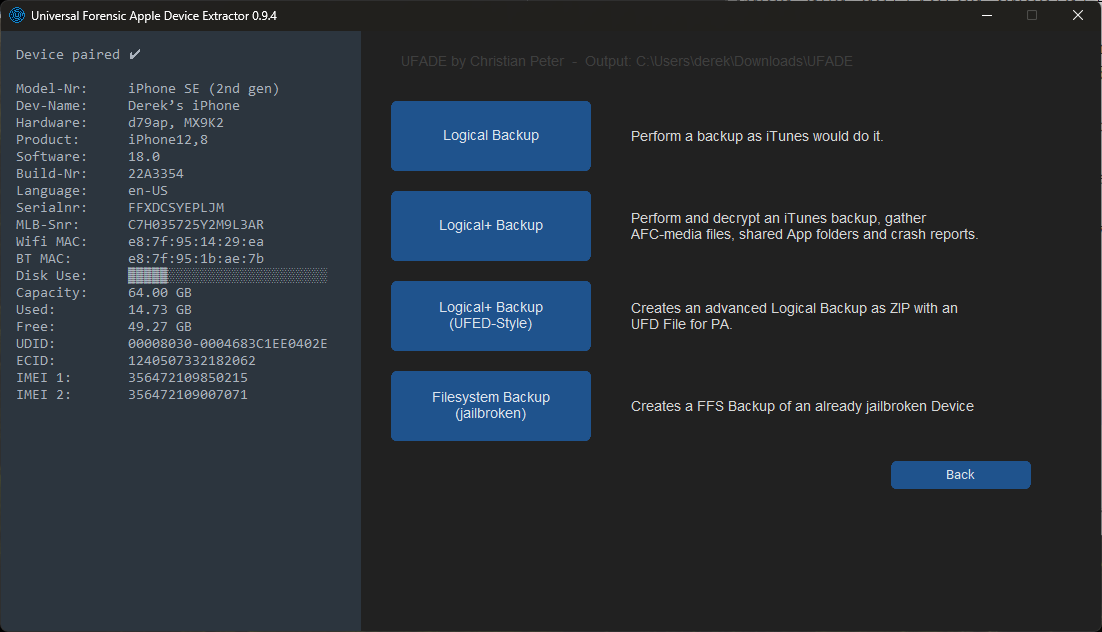
Logical+ Backup
The encrypted backups are enabled with the default UFADE password, ‘12345’. After the backup is complete and decrypts the backup, encrypted backups are disabled.
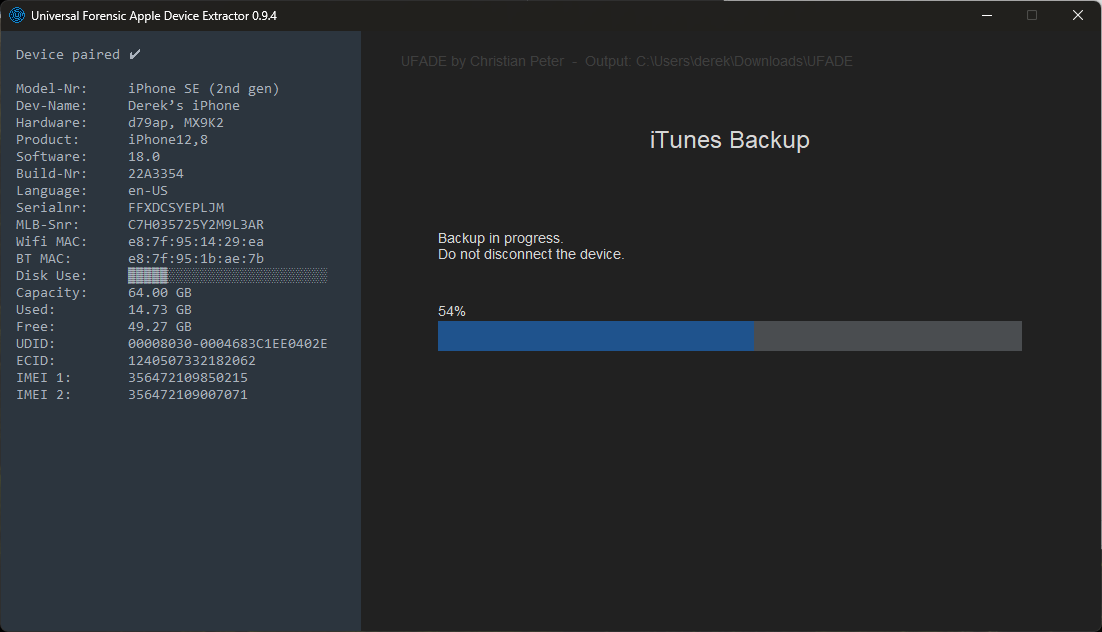
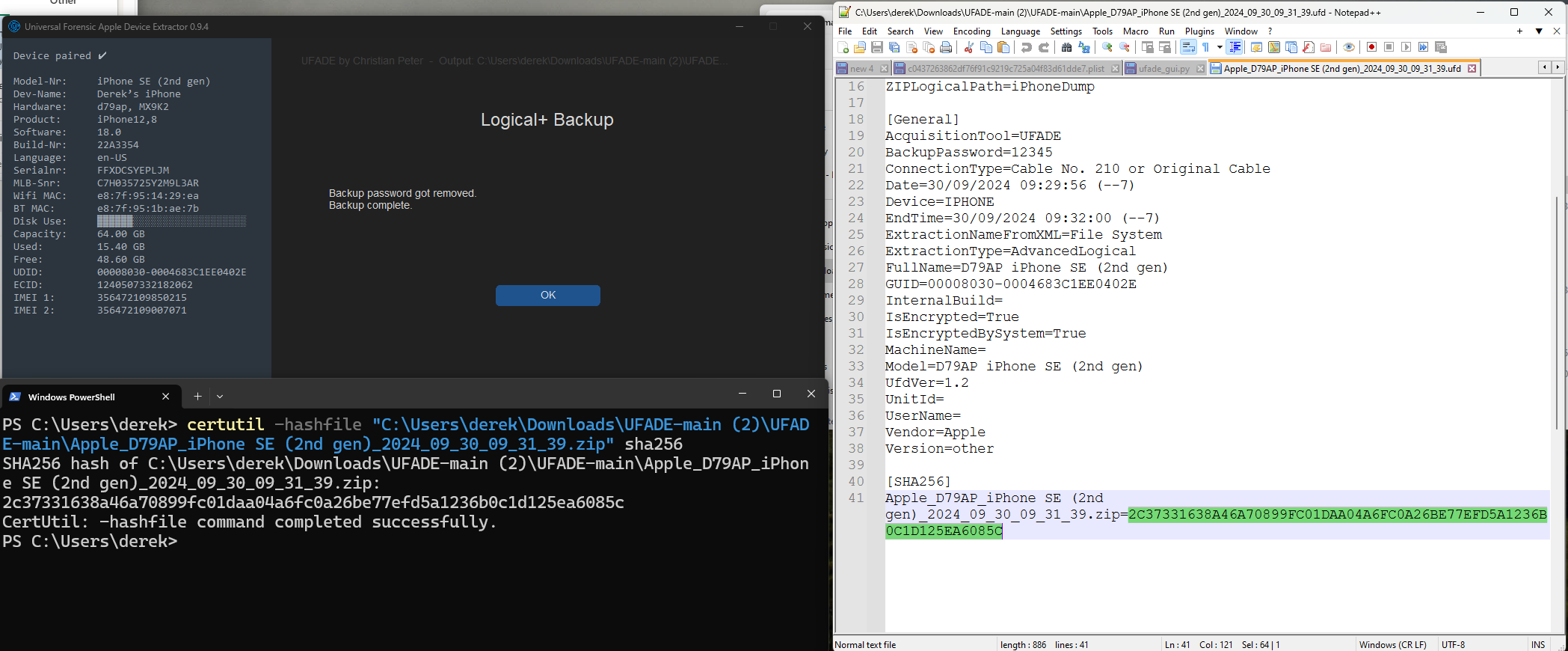
Logical+ Backup (UFED-Style)
The UFED-Style backup is logical+ that is archived in a .zip file. The process includes a text file with the device’s information and a SHA256 hash for the archive file.
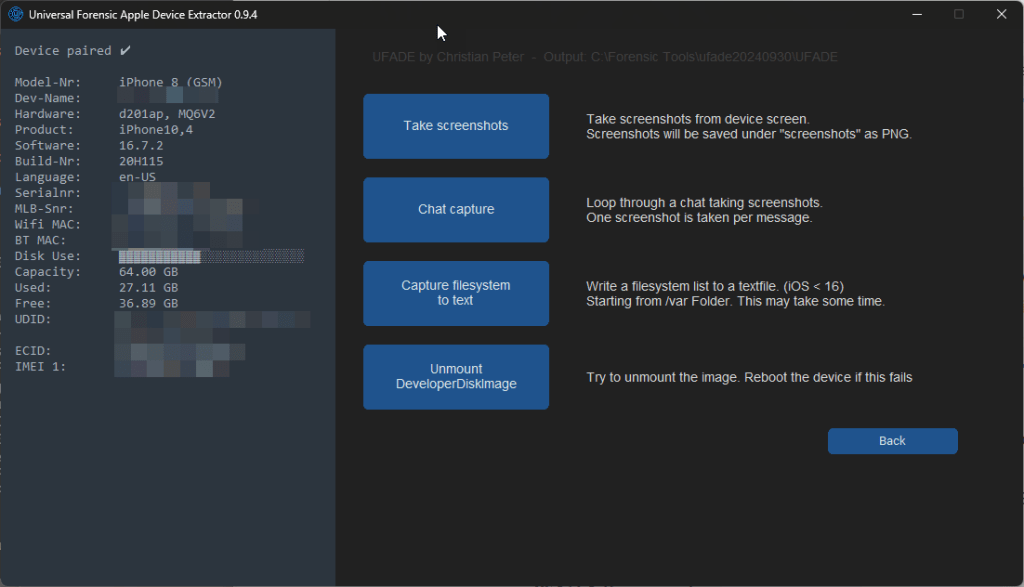
Developer Options
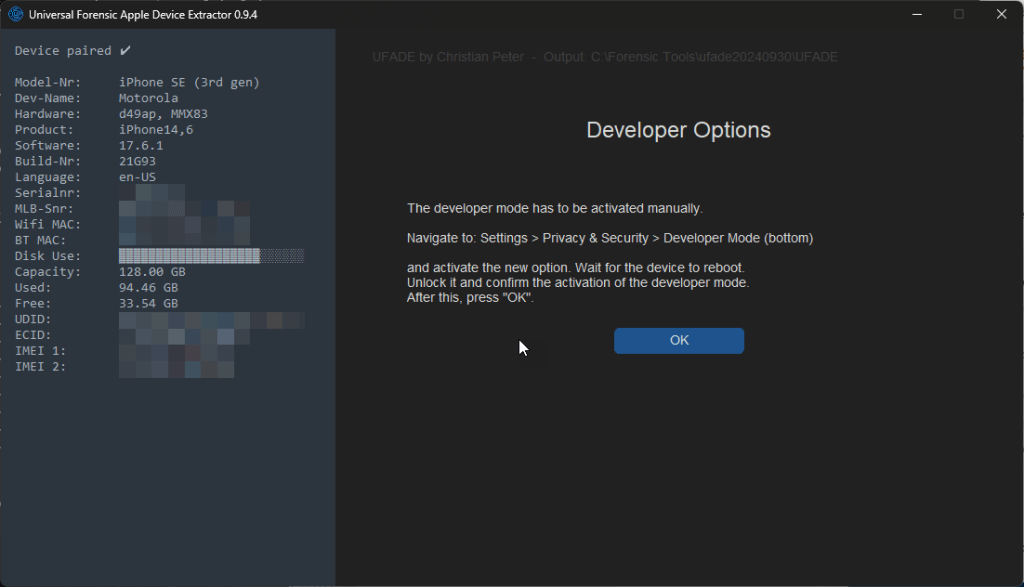
I was successful enabling UFADE’s developer options for iOS 17 and higher by executing UFADE with administrator privileges and deactivating the passcode on the iOS device using a Windows machine. If a configuration profile enforces passcodes, this won’t work. Alternatively, developer mode on the iOS device can be enabled from a macOS machine using Xcode and Apple Configurator 2. Since iOS 17, that approach has not worked for supervised devices.
Addendum 2024-09-30:
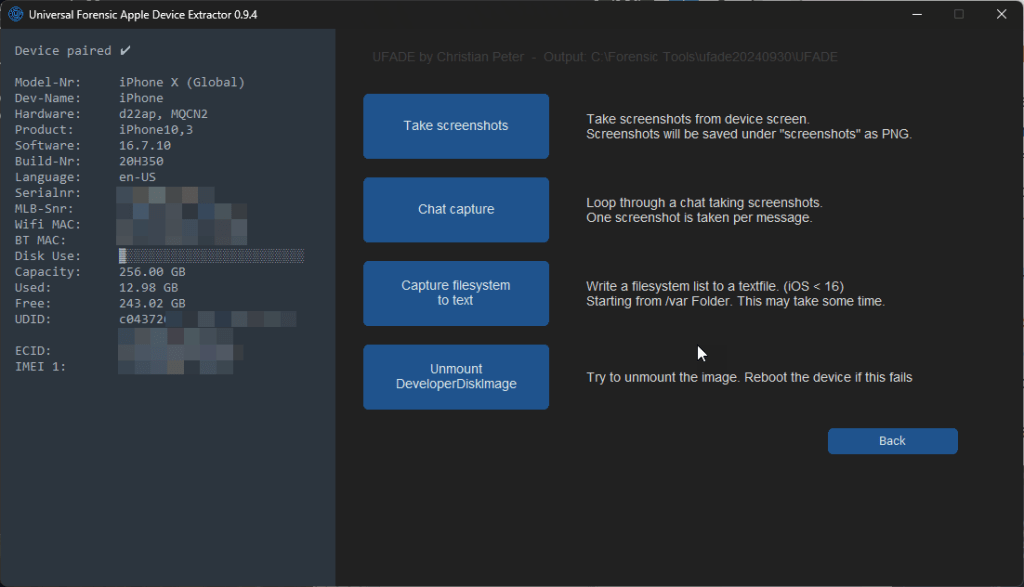
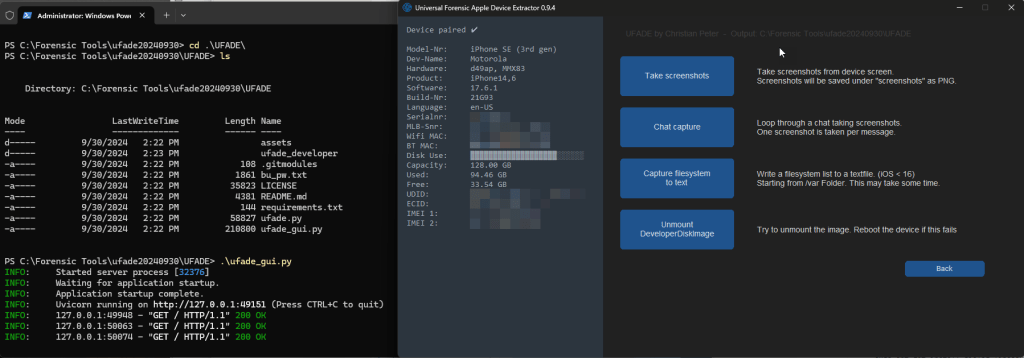
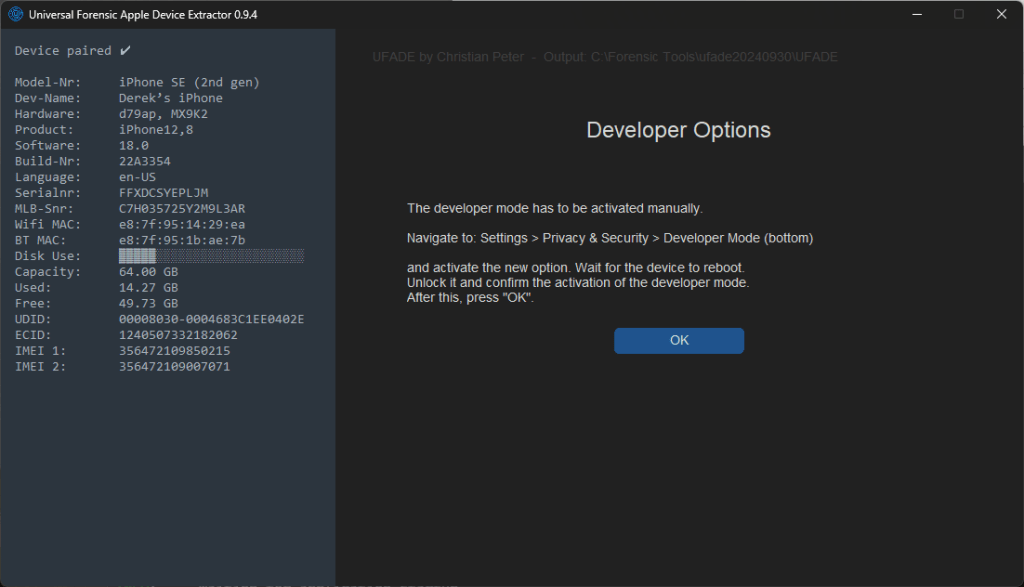
Peter noted for iOS versions >= iOS 17, UFADE should not require deactivation of the passcode to enable Developer Mode. As of commit 5ec1b50d085bc3effe0998f8e88d1bb52e2705a3, I can enable Developer mode without disabling the passcode on iOS 16.2.7 (iPhone 8, unsupervised), iOS 16.7.10 (iPhone X, supervised + pair-locked), iOS 17.6.1 (iPhone SE 2022, unsupervised) and iOS 18.0 (iPhone SE 2020, supervised + pair-locked).
iOS 16.7.2 via iOS 16.7 DeveloperDiskImage, Unsupervised
iOS 16.7.10 via iOS 16.7 DeveloperDiskImage, Supervised
iOS 17.6.1, Unsupervised
iOS 18.0, Supervised and Pair-locked
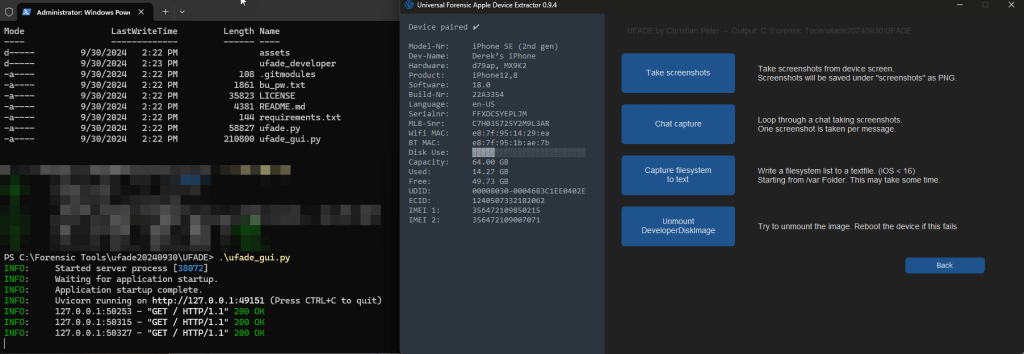
UFADE will also unmount the DeveloperDiskImage to restore the device to its “original” state.
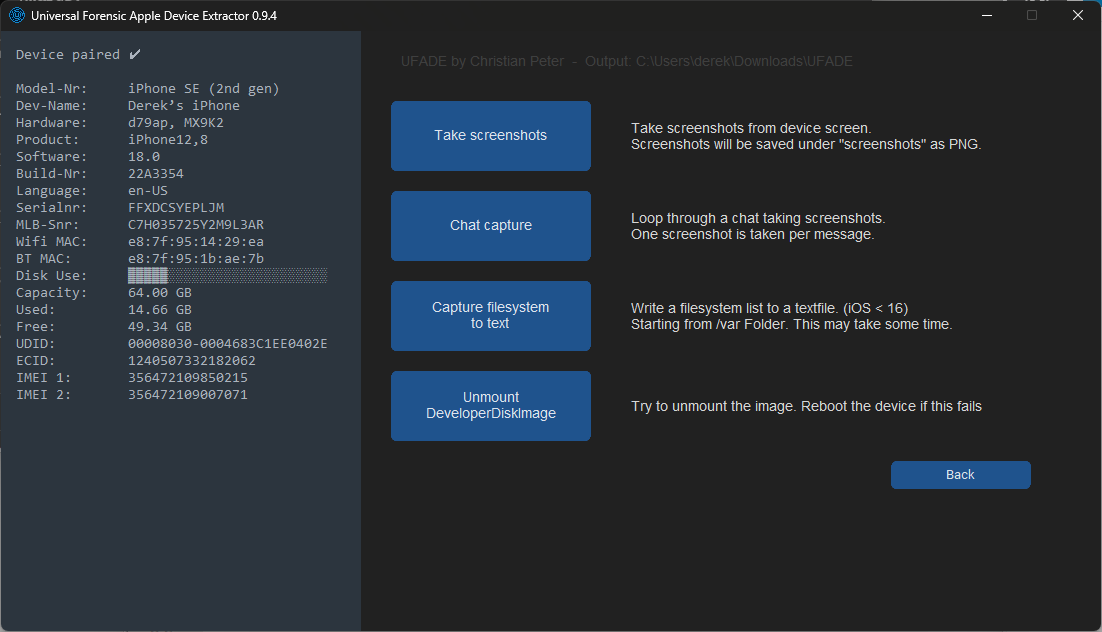
Take screenshots
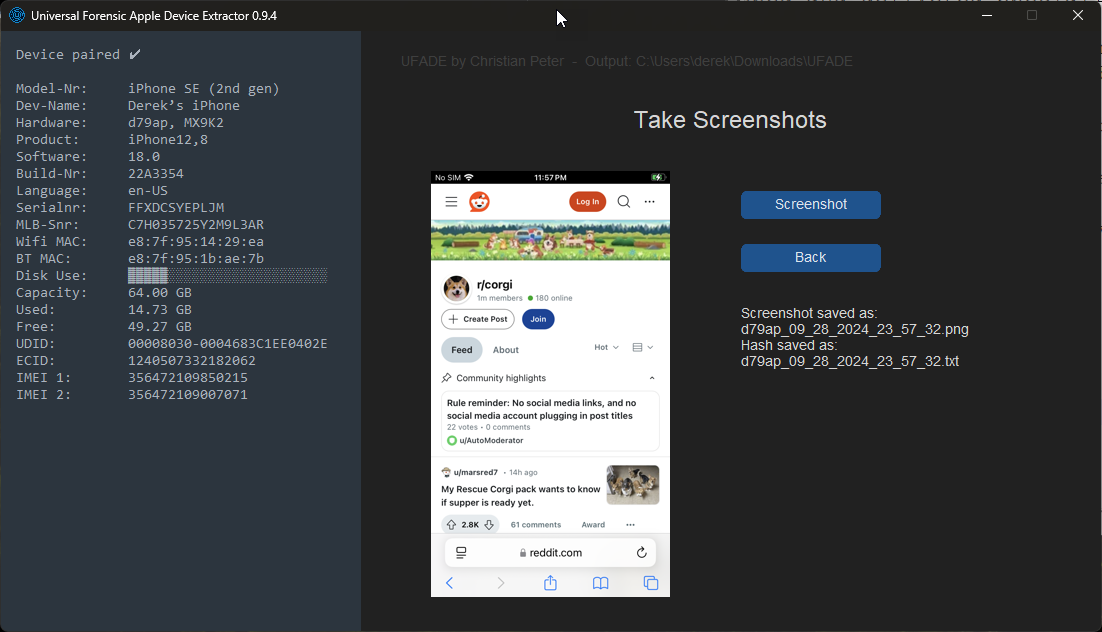

In the output directory, UFADE will create a directory, “screenshots”. Each screenshot will generate a .png file, and a corresponding text file containing the SHA256 hash.
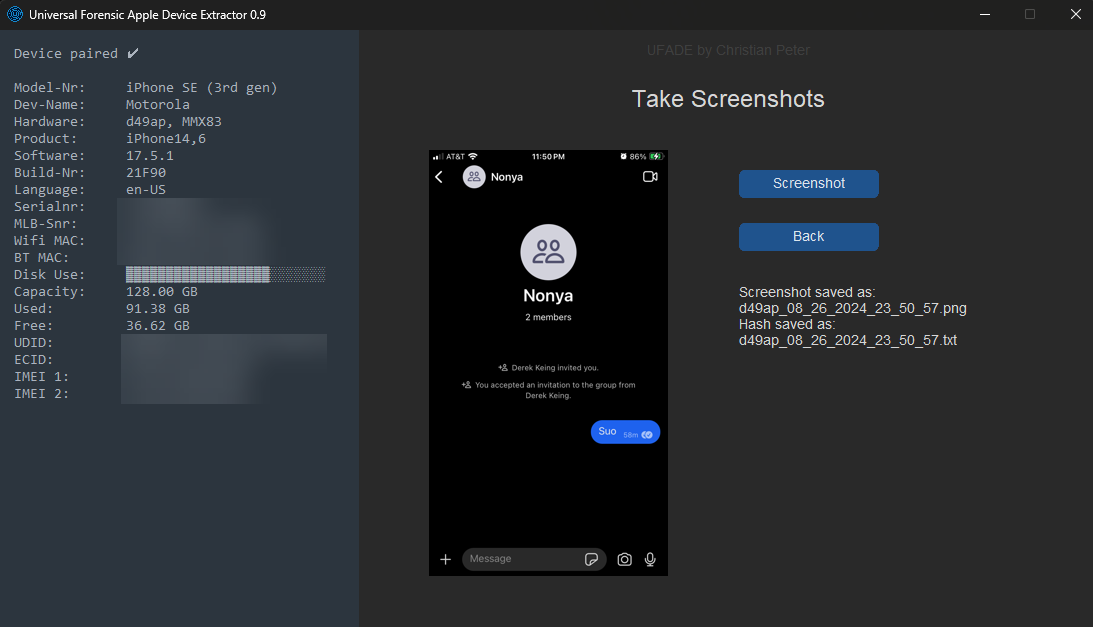
Chat Captures
In episode 20 of the Digital Forensics Now podcast, Alexis Brignoni noted an excellent application of UFADE. If there is no support for an iOS version to collect chat records from a cooperating witness, then UFADE is a preferable alternative to a camera or video camera.
In a corporate environment, UFADE may be an option to use on personal devices when classified as “BOYD” when an iTunes backup may not be appropriate.
Advanced Options
Even more options available, including extracting media files via Apple File Conduit.
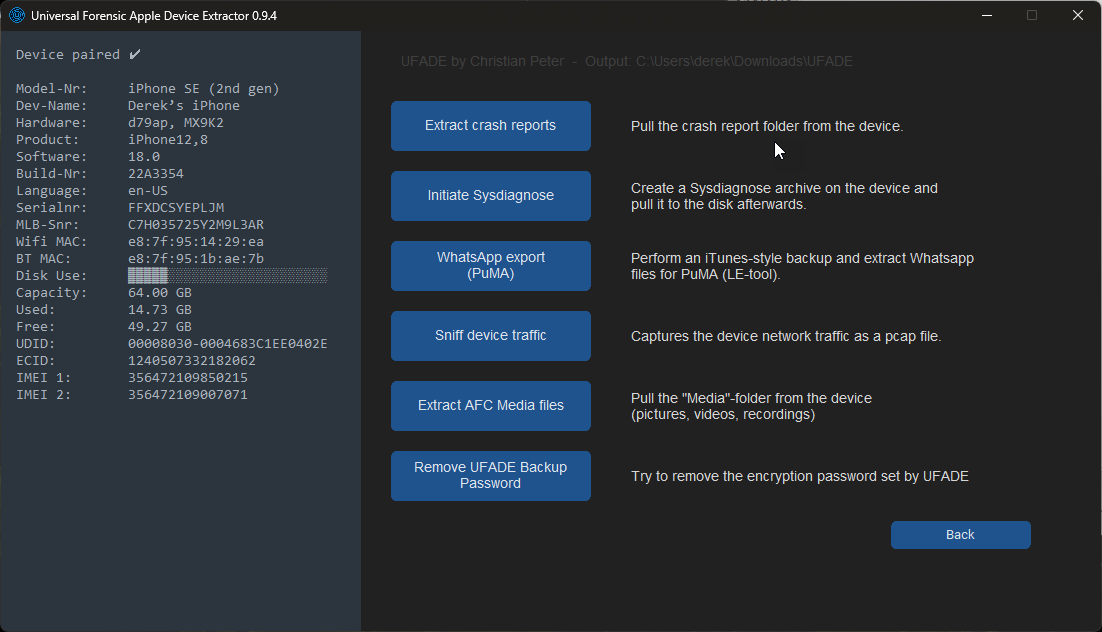
Early Exploration with Developer Options and Supervised iOS Devices
Previous to UFADE’s ability to load a P12 file with v0.9.4, I used UFADE v0.9.3 with iMazing to pair a supervised, pair-locked, iOS device on a Windows machine to take screenshots.
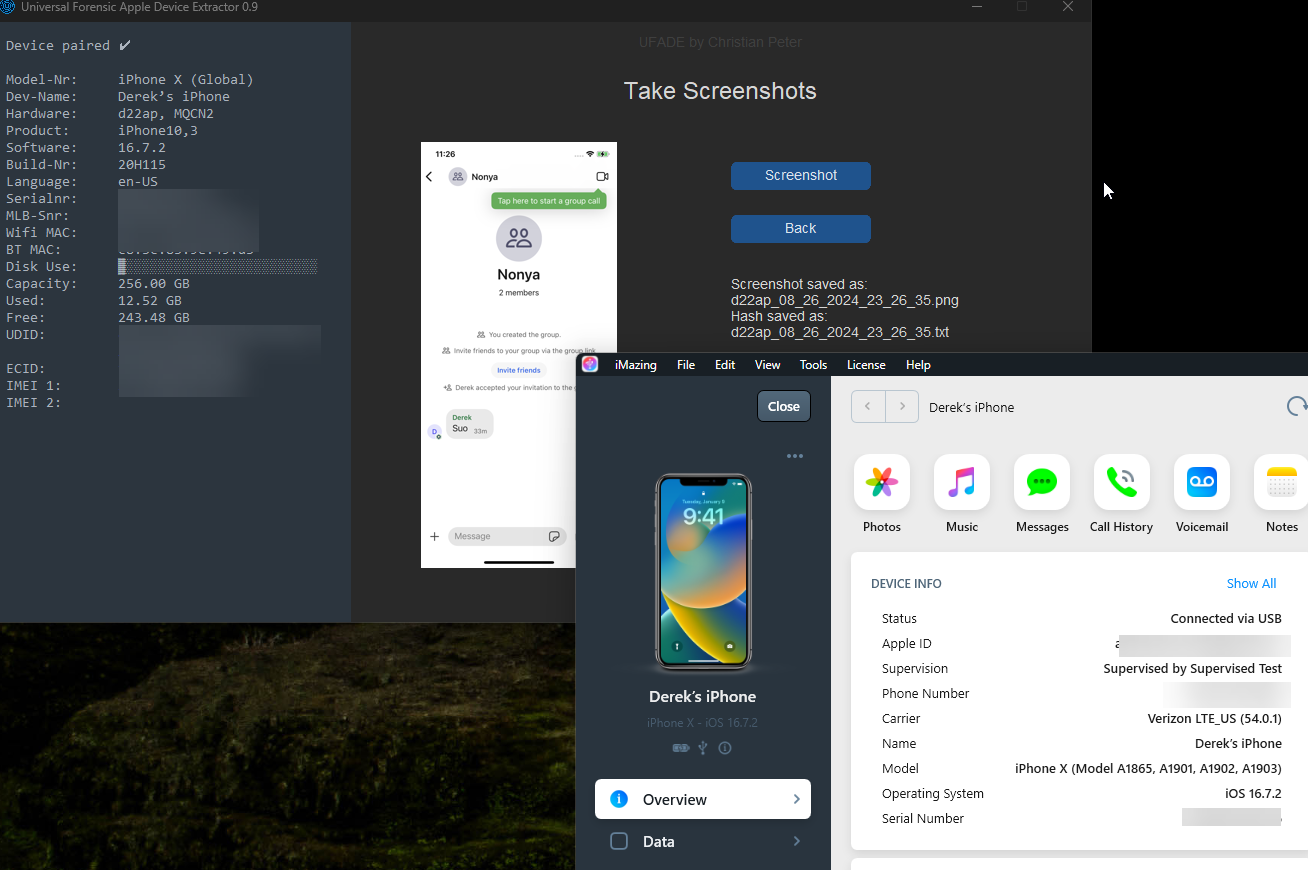
In my use-case involving corporate devices, the configuration profile via MDM enforces a passcode and UFADE cannot enable Developer Mode on its own without the passcode removed. To enable Developer Mode for this use-case, I had to connect the device to a macOS machine, pair the supervised device with Apple Configurator 2, and run Xcode. I can do this successfully up to iOS 16.7.10 using the 16.7 developer image.
From my tests, Xcode will not recognize a supervised device running iOS 17.x despite establishing a paired connection using Apple Configurator 2. It seems I am not the only one who made this observation.
https://forums.developer.apple.com/forums/thread/750406
Addendum 2024-09-30:
Despite the Xcode issue, Peter now has UFADE able to activate Developer Mode without involving a macOS device. I tested this change on iOS 16.2.7 (iPhone 8, unsupervised), iOS 16.7.10 (iPhone X, supervised + pair-locked), iOS 17.6.1 (iPhone SE 2022, unsupervised) and iOS 18.0 (iPhone SE 2020, supervised + pair-locked). See notes above in the Developer options section.
Wrap Up
UFADE is feature-packed community tool with a great user interface. I’m especially elated that Peter included the ability to use UFADE on supervised pair-locked devices. It’s also free. I look forward to seeing Peter’s work on UFADE progress!
If you find project interesting or useful, consider buying Peter a coffee.
Sidebar
Background on Pair-Locked iOS Devices
I previously wrote about an extraction method I tested here. In summary, Windows and macOS require an application to apply a supervision certificate to pair a pair-locked iOS devices to a computer. Following my tests, I was able to acquire a full file system extraction from a pair-locked iOS device using Elcomsoft’s iOS Forensic Toolkit on macOS and Windows systems, using Apple Configurator 2 and iMazing, respectively. More importantly, discovering that iMazing is capable of pairing supervised iOS devices opened opportunities for additional tools that run exclusively on Windows. This finding provided a few options:
| Workflow using macOS: |
| 1) If iOS version and device is supported, use bootloader-level extraction with EIFT. 2) Pair supervised iOS device with Apple Configurator 2 3) Acquire an encrypted backup with Apple Configurator 2. 4) If iOS version is 12.0 through 16.6.1, use agent-base extraction. |
| Notes: macOS machines may not be common in the environment. Extraction is limited by the number of the macOS machines accessible to the examiner to use Apple Configurator 2. This requires a custodian to travel to the lab, or the examiner to travel to the lab. |
| Workflow using Windows: |
| 1) Pair supervised iOS device with iMazing. 2) Acquire an encrypted backup with iMazing, or other tool. 3) If iOS version is 12.0 through 16.6.1, use agent-based extraction with EIFT or other agent-based tools |
| Notes: If remote capability to a custodian’s enterprise Windows machine is possible, iMazing can be installed, then paired with the supervision certificate to collect the encrypted backup and save to a networked drive – just remember to clean up, including the lockdown file. While iMazing can provide access to supervised iOS devices, it is limited to the number of licenses, or slots, purchased. Acknowledge APFS metadata will be lost when saved on filesystems not APFS. |
| Specialized FFS Extraction Tool |
| Use a specialized FFS extraction tool to load a supervision certificate to complete a consent-based full file system extraction. |
| Notes: Regular updates provide access to recent iOS versions. May be cost-prohibitive. |
Remote Collections
The ability to remotely acquire data from mobile devices can improve process efficiency. I’m aware of a couple vendors that offer that ability; however, their solutions do not accommodate supervised devices. Fortunately, acquiring a backup of a supervised iOS device remotely is possible using a screen sharing application and an appropriate mobile device management tool. However, if you’re in an environment dominated with Windows machines, many custodians will not have a macOS machine to use Apple Configurator 2. Installing iMazing on a custodian’s Windows machine is a viable solution; however, there is a cost per device via their business subscription model. While iMazing has several features that are worth paying for, UFADE is very capable of collecting an encrypted backup at no financial cost.
| Workflow with UFADE on Windows using a Screen Sharing Application |
| 1) Use a script to install Python >=3.11, UFADE and UFADE dependencies from a network share or cloud location. 2) Execute UFADE. 3) Instruct custodian to connect iOS devices to their Windows machine. 4) Load supervision certificate. 5) Create a Logical+ or UFED-Style collection, then save to a network share. 6) When complete, uninstall programs and clean up (lockdown file and pymobiledevice3 pair record). |
| Notes: macOS machines may not be common in the environment. Extraction is limited by the number of the macOS machines accessible to the examiner to use Apple Configurator 2. This requires a custodian to travel to the lab, or the examiner to travel to the site. APFS metadata will be lost when saved on filesystems not APFS. |
Feature image generated with WordPress’ Jetpack AI Assistant. Prompt: “A highly sophisticated machine that extracts juice from an apple. Computers. Steampunk. Digital Forensics. Technology. Future.”


 mr. eerie
Leave a comment